

 FAQs
FAQsLayout

- Grid Style: Choose from different styles.
- Columns: Set the exact amount of columns for each row.
- Posts Per Page: Set the exact amount of posts to be displayed in the widget.
- Image: Choose whether to show or hide the image.
- Image size: Set the size of the images.
- Title: Choose whether to show or hide the title.
- Title HTML tag: Wrap the title with a tag, either H1…H6, span, div or paragraph.
- Meta Data:
Source: Select the source from which the widget will display the content. Options include Date and Categories. - Separator Between: Enter the custom meta separator
- Excerpt: Enable or disable the excerpt text.
- Excerpt length: set the excerpt max text length.
- Read more: Enable or disable the read more button.
- Read more text: Enter the custom read more text.
- Alignment: Align the content to the right, left or center.
Query
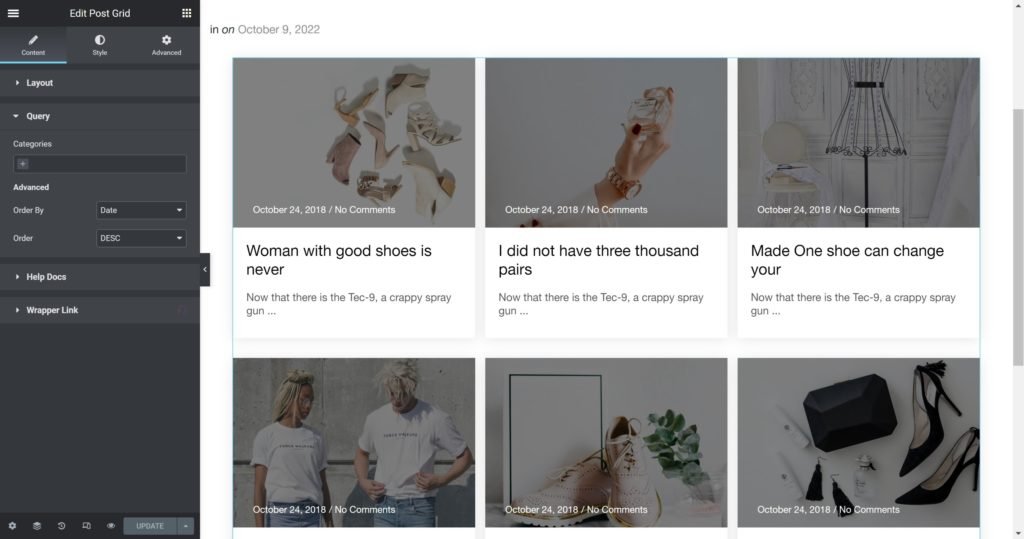
Source: Select the source from which the widget will display the content. Options include categories if available, manual selection, current query, and related. Depending upon which source you’ve chosen for the query, you’ll be given options which allow you to filter the results.
- Order By: Set the order in which the posts will be displayed. Options include: Date, Title, Menu Order, or Random
- Order: DESC (descending) or ASC (ascending)
Style
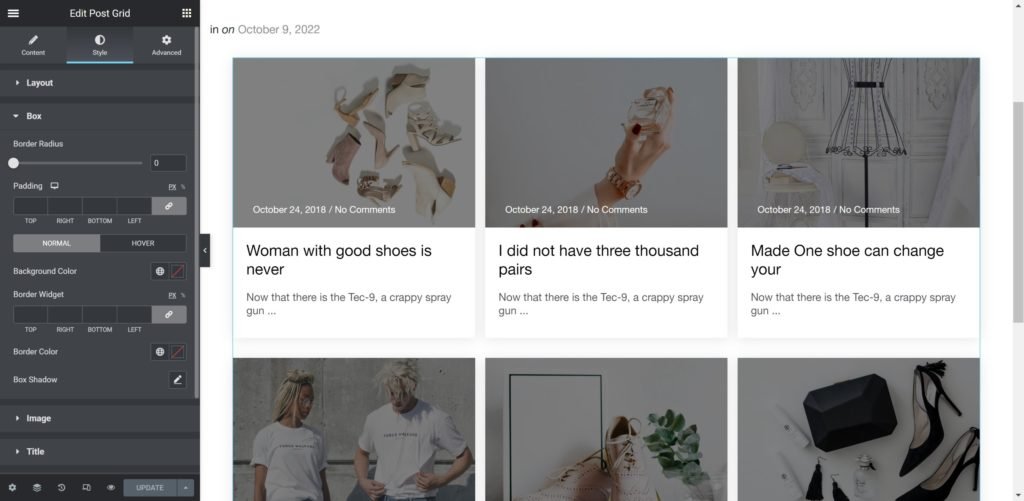
Box:
- Border Radius: Set the border radius for the images to control corner roundness.
- Padding: Set the inner spacing between the edge of the content and the edge of the slide.
- Background Color: Set the background color of the overlay when you hover over the image.
- Border Widget: Set the thickness of the border around each slide.
- Border color: Choose the border color.
- Box-shadow: Give the widget a box shadow.
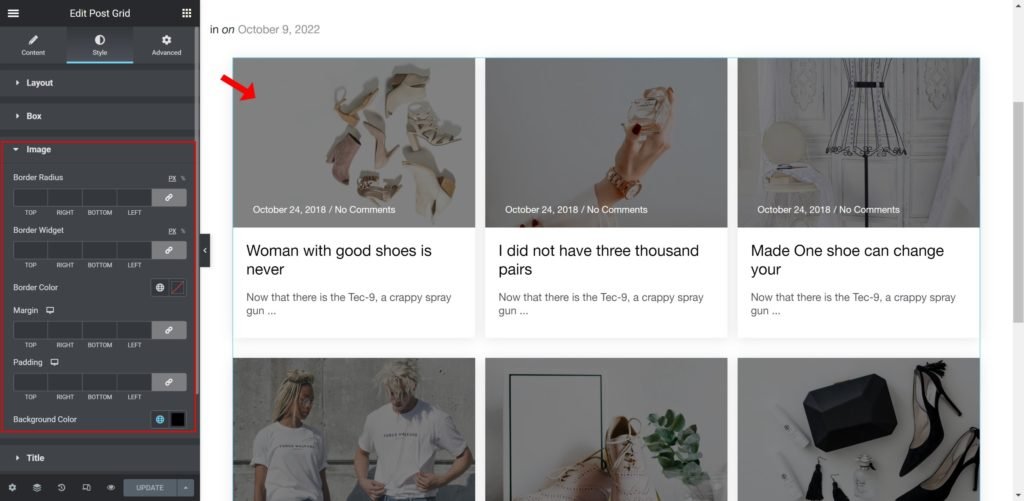
Image:
- Border Radius: Set the border radius for the images to control corner roundness.
- Border Widget: Set the thickness of the border around each slide.
- Border color: Choose the border color.
- Margin: Set the outer spacing between the edge of the Title and the edge of the item slide.
- Padding: Set the inner spacing between the edge of the content and the edge of the slide.
- Background Color: Set the background color of the overlay when you hover over the image.
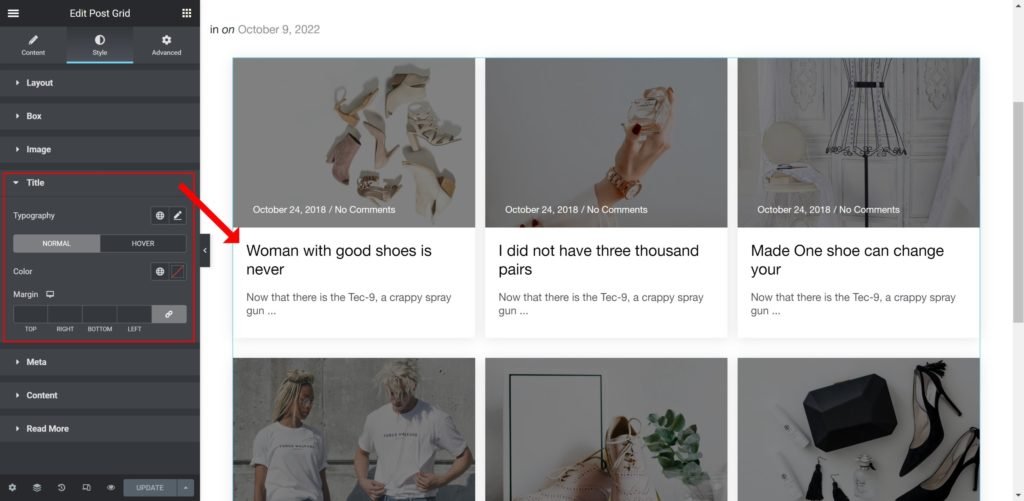
Title:
- Typography: Customize the typography of the Title.
- Color: Set the post’s Title color. The title appears within the overlay when you hover over the image.
- Margin: Set the outer spacing between the edge of the Title and the edge of the item slide.
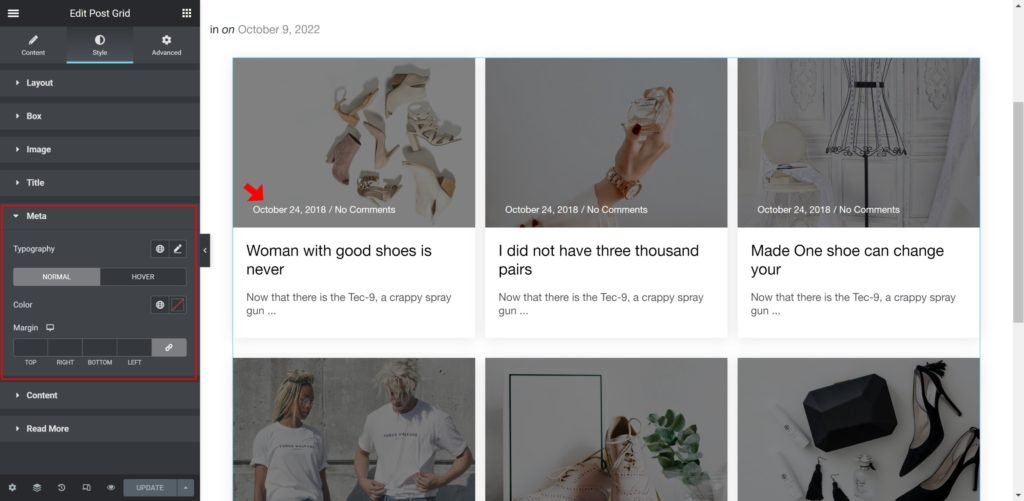
Meta:
- Typography: Customize the typography of the Title.
- Color: Set the post’s meta color.
- Margin: Set the outer spacing between the edge of the meta and the edge of the item slide.
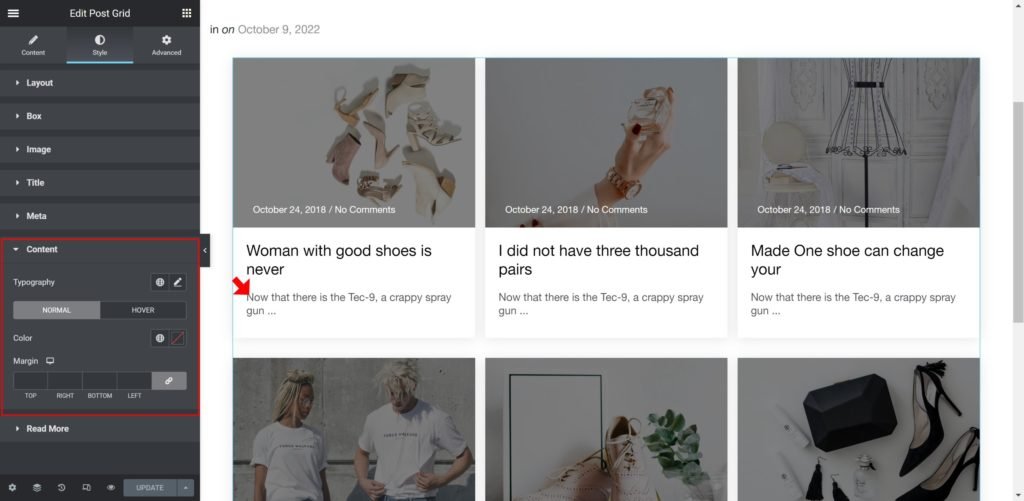
Content:
- Caption Typography: Customize the typography of the caption.
- Color: Set the post’s caption color.
- Margin: Set the outer spacing between the edge of the caption and the edge of the item slide.
Read More:
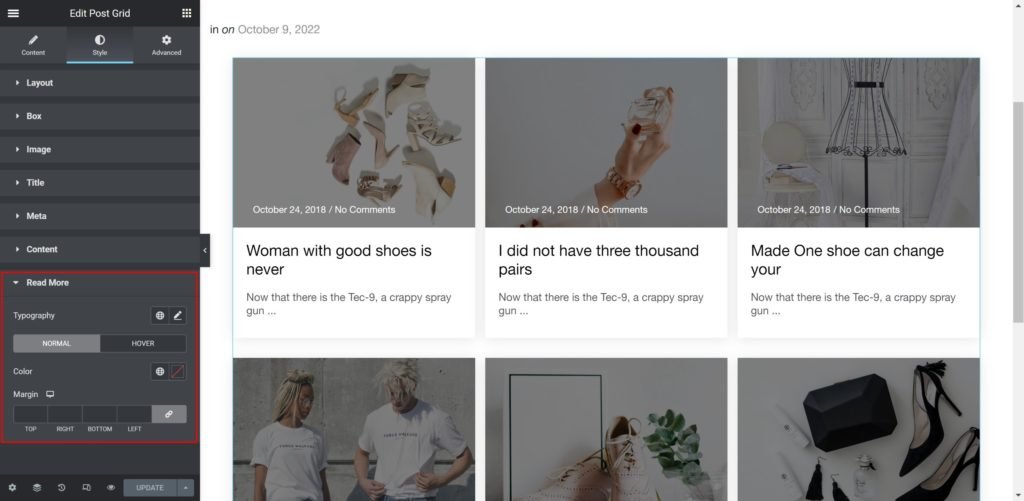
- Typography: Customize the typography of the button.
- Color: Set the post’s button color.
- Margin: Set the outer spacing between the edge of the caption and the edge of the item slide.
